
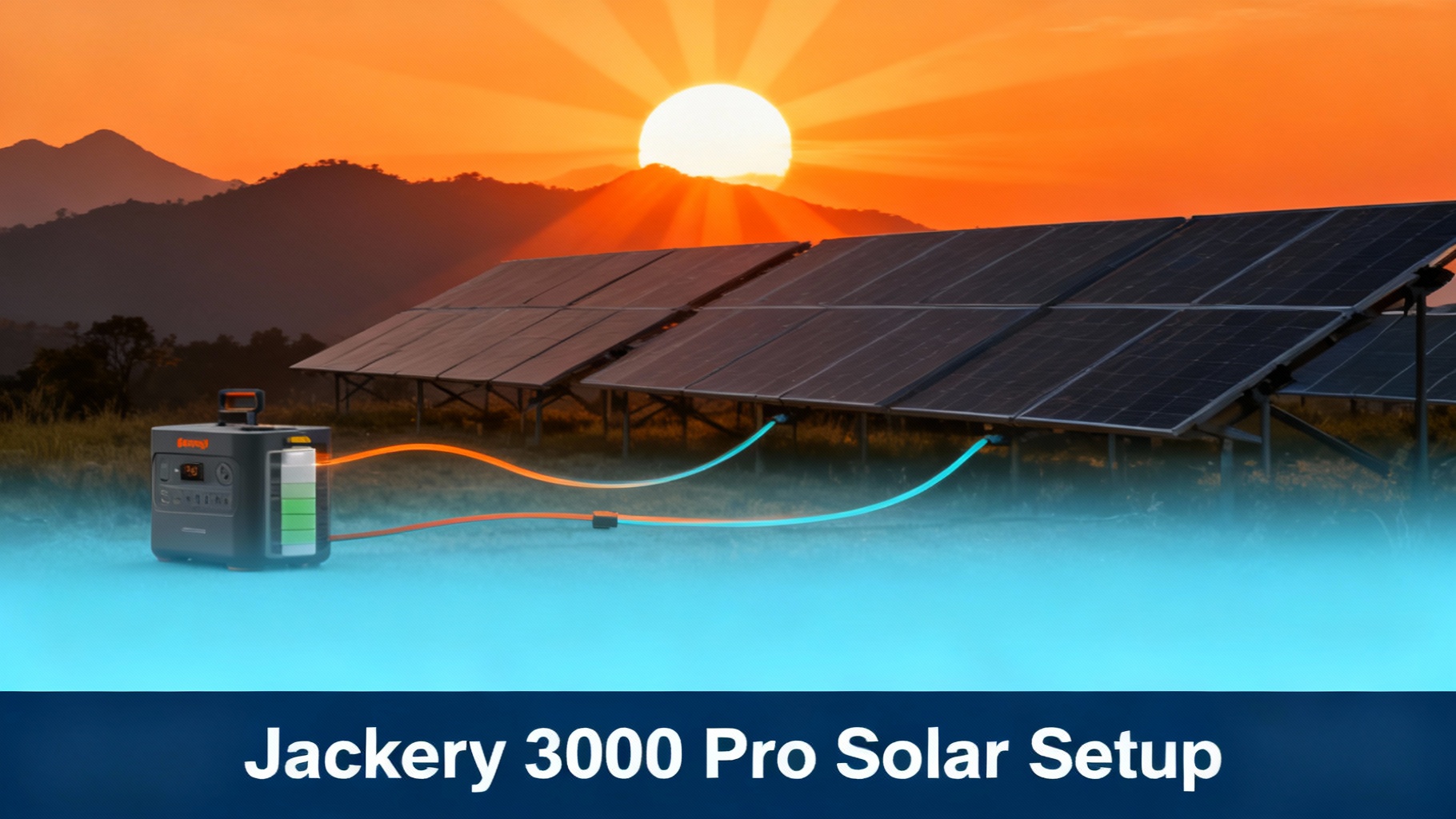

You just unboxed your Jackery Explorer 3000 Pro and a set of SolarSaga panels. Now what?
Setting up solar charging might feel intimidating if you’ve never done it before, but the process is actually straightforward once you understand the basics. This guide walks you through the entire Jackery 3000 Pro solar generator setup in 30-60 minutes, from positioning your power station to verifying your first successful charge.
The Jackery Explorer 3000 Pro stands out in Jackery’s lineup for its solar capabilities. With a massive 3024Wh capacity and support for up to 1400W of solar input, you can fully recharge this unit in just 3-4 hours under optimal sunlight conditions. That’s significantly faster than most portable power stations in this class. Whether you’re setting up for off-grid camping, emergency backup, or reducing your reliance on the grid, getting your solar system dialed in correctly makes all the difference.
Before we dive into the steps, here’s what makes this worth your time: a properly configured solar setup can save you hours of charging time and extend your power station’s usability during multi-day trips or extended outages. We’ll cover everything from the basic connections to troubleshooting common issues that trip up first-time users.
Let’s get your Jackery solar generator system up and running.
🔋 Ready to Go Solar with the HomePower 3000?
Why we recommend it: The Jackery Solar Generator HomePower 3000 + 2x SolarSaga 200W bundle pairs a compact 3072Wh / 3600W power station with fast solar charging. Perfect for serious off-grid users and emergency backup.
$1,699 | Free shipping | 3-year warranty + 2-year extended
Own a Jackery? Get the owner's checklist.
Storage, cold weather, solar limits and battery health for your Jackery power station, in one email. After that, about one email a week with setup guides, plus a heads-up when compatible batteries or panels go on sale.
Unsubscribe in one click. We may earn a commission when you buy through our links, at no extra cost to you. Privacy Policy
What You’ll Need
Getting organized before you start saves time and frustration. Here’s everything you need to gather before beginning the solar panel setup for Jackery 3000 Pro.
Required Equipment
The bare minimum to get solar charging working includes:
Jackery Explorer 3000 Pro – The power station itself. Make sure it’s charged to at least 20-30% before starting, as this helps the system initialize solar charging more reliably. This flagship model features 3024Wh capacity, 3000W continuous output, and can power up to 99% of outdoor appliances.
SolarSaga panels – Jackery recommends their 200W panels, which are specifically designed to work with the Jackery 3000. You can use between 1 and 6 panels depending on how fast you want to charge.
Solar cables – These come included with your SolarSaga panels. Each panel includes its own cable with the correct MC4 connectors.
MC4 parallel adapter – If you’re connecting 2 or more panels, you’ll need this adapter to combine the output. It typically comes included with multi-panel kits, but verify before ordering.
Optional But Helpful Items
These aren’t strictly necessary, but they’ll make your life easier:
- Panel stands or mounts – SolarSaga panels include kickstands, but dedicated stands give you more flexibility for angling. Particularly useful if you’re setting up on uneven ground or want to adjust throughout the day.
- Extension cables – Standard cables are about 10 feet long. If you need to position panels farther from your power station (to keep it in the shade while panels are in the sun), extension cables are worth having.
- Voltage meter – A simple multimeter helps verify panel output before connecting to your power station. Not essential, but useful for troubleshooting if something isn’t working correctly.
- Microfiber cloth – Dusty or dirty panels can lose 15-20% efficiency. A quick wipe-down makes a real difference.
Estimated Time and Difficulty
Let’s set realistic expectations for your Jackery Explorer 3000 solar setup:
- First-time setup: 30-45 minutes – This includes reading the manual, understanding connections, and getting everything positioned correctly.
- Subsequent setups: 10-15 minutes – Once you know what you’re doing, breaking down and setting up becomes quick.
- Difficulty level: Easy – No electrical knowledge required. If you can plug in a phone charger, you can do this.
- Physical effort: Moderate – The 3000 Pro weighs about 70 pounds, and each 200W panel weighs 16-23 pounds depending on the model. You’ll need to move equipment around to find optimal positioning.
Before You Start: Safety and Preparation
Taking five minutes to review safety basics prevents problems later. Solar panels generate electricity whenever light hits them, so treating the system with respect matters.
Safety Precautions
Follow these rules every time:
⚠️ Never connect or disconnect solar panels during active charging – Wait until the screen shows the solar input has dropped to 0W before unplugging anything. Connecting or disconnecting under load can damage the charge controller.
- Check cable condition before each use – Look for fraying, exposed wires, or damage to connectors. Cables left outside deteriorate over time from UV exposure.
- Avoid water contact on connectors – MC4 connectors are weather-resistant, not waterproof. Keep connections dry. If they get wet, dry them completely before connecting.
- Don’t exceed 1400W maximum solar input – The Jackery 3000 Pro‘s charge controller maxes out at 1400W. Stay under this limit to protect your equipment. Six 200W panels (1200W total) is the recommended maximum.
- Keep ventilation clear – The unit’s cooling vents need at least 6 inches of clearance on all sides. Blocking vents during solar charging can trigger thermal shutdowns.
Important Preparation Steps
Do these before making any connections:
- Read the 3000 Pro manual section on solar – Takes 5 minutes and covers model-specific details that prevent common mistakes.
- Verify panel connectors match – SolarSaga panels use MC4 connectors, which is the solar industry standard. If you’re using third-party panels, confirm they also use MC4 before purchasing.
- Plan your panel placement – Scout your location before hauling equipment around. You need a spot with full sun exposure and room to position the 3000 Pro nearby but preferably in shade.
- Ensure the 3000 Pro is OFF during initial connection – Press and hold the power button until the screen turns off completely. This protects the electronics during the first solar connection.
Own a Jackery? Get the owner's checklist.
Storage, cold weather, solar limits and battery health for your Jackery power station, in one email. After that, about one email a week with setup guides, plus a heads-up when compatible batteries or panels go on sale.
Unsubscribe in one click. We may earn a commission when you buy through our links, at no extra cost to you. Privacy Policy
Step-by-Step Solar Setup Instructions
Now we get to the actual process for your Jackery solar generator 3000 Pro. Follow these steps in order, and don’t skip ahead.

Step 1: Position Your Jackery Explorer 3000 Pro
Where you place the unit matters more than you might think.
Find a flat, stable surface. The 3000 Pro has wheels and a pull handle, but it’s not designed to operate on an incline. Unlevel positioning can trigger false overheat warnings.
Ensure proper ventilation around all sides. The unit pulls in cool air from the sides and exhausts warm air out the back. Leave at least 6 inches of clearance on all sides.
Keep the unit in shade if possible. Direct sunlight won’t damage the 3000 Pro, but it forces the cooling system to work harder, which is noisy and slightly reduces charging efficiency. If you can’t avoid sun, at least position it where you can drape a light cloth over the top (don’t cover the vents).
Position near a window or door if panels will be outside. You want to minimize cable length, which reduces power loss and tripping hazards.
Step 2: Unpack and Inspect Solar Panels
Don’t rush this step. Damaged panels are the number one source of setup headaches.
Remove panels from packaging carefully. SolarSaga panels ship with protective foam. Save this foam if you plan to transport panels frequently.
Check for shipping damage. Look for cracks in the panel surface, bent frames, or loose connections. Test the kickstands to ensure they lock in place securely.
Verify cable connections are secure. Sometimes connectors loosen during shipping. Give each connection a firm twist to ensure it’s tight.
Clean the panel surface if dusty. Use a microfiber cloth or soft rag with just water. Don’t use glass cleaner or harsh chemicals, which can damage the anti-reflective coating.
Step 3: Position Solar Panels for Maximum Sun
Panel positioning makes the difference between a 4-hour charge and an 8-hour charge.
☀️ Optimal Solar Panel Positioning Guide
Direction
Face panels true south (Northern Hemisphere) or true north (Southern Hemisphere). Use compass app for accuracy.
Tilt Angle
Set tilt angle equal to your latitude for year-round optimization. At 40°N, tilt panels 40 degrees.
Zero Shade
Critical: Even partial shade on one corner reduces output by 50%+. Move until completely shade-free.
💡 Pro Tip: The sun moves 15° per hour. Adjusting panel angle 2-3 times daily can boost total energy capture by 25-30%.
Use the kickstands or a flat surface: The built-in kickstands work well on grass, dirt, or pavement. On soft ground, place a piece of plywood under each panel to prevent sinking.
Allow for sun tracking (optional): The sun moves about 15 degrees per hour. If you’re around camp, adjusting panel angle once or twice during the day can boost total energy captured by 20-30%.
Step 4: Connect Multiple Panels (If Using 2+ Panels)
Single-panel setups skip this step. If you’re connecting two or more panels, here’s how to do it correctly for your Jackery 3000 solar generator.
💡 Important: Always use parallel connection (all positive terminals together, all negative terminals together) for the 3000 Pro. This keeps voltage reasonable while increasing current.
Get your MC4 parallel adapter ready: This Y-shaped adapter combines multiple panel outputs into a single connection. One end has two female MC4 connectors (for the panels), and the other end has two male MC4 connectors (for the cable to your power station).
Connect positive to positive, negative to negative: MC4 connectors are keyed and color-coded. Red or marked with (+) is positive. Black or marked with (-) is negative. Match these correctly.
Double-check polarity before final connection: Reversing polarity won’t typically damage modern solar panels or the 3000 Pro’s charge controller (they have protection), but it prevents charging and can confuse troubleshooting later.
Maximum configuration: Six 200W panels equals 1200W total, which stays safely under the 1400W limit. Don’t connect more than six 200W panels without additional equipment.
Step 5: Plug Solar Cable into Explorer 3000 Pro
This is the moment where everything comes together.
Locate the solar input port: On the 3000 Pro, it’s on the side of the unit, marked with a sun icon and labeled “SOLAR INPUT.” Can’t miss it.
Align the connector correctly: The DC8020 connector (or MC4-to-DC8020 adapter) only fits one way. Look at the connector carefully – there’s a flat edge that aligns with a corresponding flat edge in the port.
Push firmly until you hear a click: Don’t just push until it stops. You need to hear or feel a definite click that indicates the connector has fully seated and locked in place.
⚠️ Don’t force it: If you’re encountering significant resistance, you’ve got the alignment wrong. Pull the connector back out, rotate it 180 degrees, and try again.
Step 6: Power On and Verify Charging
This is where you find out if you did everything correctly.
Press the main power button: Hold it for 2-3 seconds until the screen illuminates. The 3000 Pro takes about 5-10 seconds to fully boot up.
Look for the “SOLAR” indicator: The screen should display “SOLAR” near the input section, along with a wattage reading. This tells you the system has detected solar input.
Wait 10-15 seconds for readings to stabilize: Solar input fluctuates as the MPPT controller optimizes charging. Don’t panic if numbers jump around initially.
Verify wattage is reasonable: With 200W panels in good sun, expect to see 160-180W per panel. Four panels should show 640-720W total. If you’re seeing significantly less, check for shade or connection issues.
💡 Actual vs. rated wattage: You’ll rarely see the full rated wattage. Efficiency losses from cables, connectors, and the charge controller itself typically result in 80-90% of the theoretical maximum.
Step 7: Monitor First Charge Session
Your first charge session teaches you what to expect in future setups.
Check the screen every 15-30 minutes initially: Watch how wattage changes as clouds pass or the sun angle shifts. This helps you understand normal fluctuations versus actual problems.
Note wattage fluctuations are normal: Solar input can vary by 20-30% as clouds pass or wind moves branches. As long as average input stays reasonable, everything is working correctly.
Ensure the unit doesn’t overheat: The 3000 Pro‘s cooling fans should be nearly silent. If you hear loud fan noise or see a temperature warning, the unit is too hot. Move it to shade and ensure ventilation is clear.
Record time to full charge: Note how long it takes to go from your starting battery percentage to 100%. This baseline helps you plan future charging sessions and identifies problems if future charges take significantly longer.
⚡ Want Faster Solar Charging?
Why upgrade the panel: The HomePower 3000 + SolarSaga 500X bundle uses a high-output 500W panel to recharge the 3072Wh battery faster. Perfect for high-demand off-grid use.
$1,899 | Free shipping | Fastest charging configuration
Verification and Testing
How do you know everything is actually working? Here’s what to look for.
How to Verify Everything is Working
Good solar charging produces clear indicators:
- Screen displays “SOLAR” input indicator: This appears as both text and an icon. If you see this, the 3000 Pro has recognized solar input.
- Wattage reading between 100W and 1400W: The exact number depends on your panel configuration and sun conditions. Any reading in this range means charging is occurring.
- Battery percentage is increasing: The most obvious sign. Watch the battery percentage for 5-10 minutes. It should tick upward, even if slowly.
- Estimated time to full is shown: The screen calculates remaining charge time based on current input. This estimate updates as conditions change.
- No error messages or warnings: If everything is correct, the screen shows just your input wattage, battery level, and estimated charge time. Warning icons or error codes indicate problems.
Expected Charging Performance
Let’s set realistic expectations for different configurations. These numbers assume good sun (not perfect, just good) around midday.
💡 Note: Charging slows down as the battery approaches 100% (this protects battery life). The last 10-15% can take almost as long as the first 50%.
Troubleshooting Common Solar Setup Issues
Something not working right? Here are the seven most common problems with Jackery 3000 Pro reviews and how to fix them.
Issue #1: No Solar Input Detected
Symptom: Screen shows 0W or no “SOLAR” indicator appears, even with panels in full sun.
Likely causes:
- Panels are completely shaded (even partial shade on all panels can result in zero input)
- Solar cable isn’t fully seated in the port (you didn’t hear the click)
- MC4 parallel adapter connections are loose
- Power station is in an error state from previous use
Solutions:
- Verify panels are in direct sunlight with zero shade
- Disconnect and reconnect the solar cable, ensuring you hear a positive click
- Check all MC4 connections are tight (give each a twist)
- Power cycle the 3000 Pro (hold power button for 10 seconds to force shutdown, then restart)
Issue #2: Solar Input Much Lower Than Expected
Symptom: Showing 50-100W when you should be getting 400W+ with multiple panels.
Likely causes:
- Partial shade on panels (even a small shadow reduces output dramatically)
- Panels positioned at poor angle relative to sun
- Dirty panel surface
- Cloudy conditions (even “partly cloudy” cuts output significantly)
- Defective panel or cable
Solutions:
- Move panels until zero shade falls on any part of any panel
- Adjust panel tilt angle to face the sun more directly
- Clean panel surface with a damp microfiber cloth
- Wait for better weather (not much you can do about clouds)
- Test each panel individually to identify a bad panel
Issue #3: Solar Charging Stops After 10-15 Minutes
Symptom: Charging starts fine but stops shortly after, requiring you to power cycle the unit.
Likely causes:
- Overheating due to poor ventilation or direct sun on the unit
- Voltage from panels too high (rare with Jackery panels, common with third-party panels)
- Battery reached 100% (obvious, but people forget to check)
- Cable connection not fully secure (vibration loosens it)
Solutions:
- Move 3000 Pro to shade and ensure 6+ inches clearance around all vents
- If using third-party panels, check total voltage stays under 60V DC
- Verify battery isn’t already fully charged
- Check that solar cable hasn’t worked loose; reseat it firmly
Issue #4: Wattage Fluctuates Wildly
Symptom: Solar input jumps from 200W to 600W to 100W within minutes, making charging unpredictable.
Likely causes:
- Intermittent shade from moving clouds or swaying branches
- Poor connection causing intermittent contact
- Panel positioned near reflective surface (metal roof, water) causing variable input
- Multiple panels with very different sun exposure
Solutions:
- Watch for shadows – you might not notice moving shade that panels register immediately
- Check all connections are tight and not corroded
- Move panels away from reflective surfaces that create variable lighting conditions
- Ensure all panels receive similar sun exposure (don’t mix full sun and partial shade panels)
Issue #5: Can’t Connect More Than 2 Panels
Symptom: When you connect a third or fourth panel, the system stops charging or wattage drops.
Likely causes:
- Exceeded the 60V maximum voltage input
- MC4 parallel adapter wired incorrectly (panels in series instead of parallel)
- One panel has reverse polarity
- Adapter is damaged or wrong type
Solutions:
- Verify you’re using a parallel adapter, not a series adapter
- Check all positive terminals connect together and all negative terminals connect together
- Test each panel individually to confirm polarity
- Try a different adapter (they do fail occasionally)
Issue #6: Error Message Appears on Screen
Symptom: Screen displays an error code or warning icon during solar charging.
Common error codes and meanings:
- Temperature Warning: Unit is too hot. Move to shade, ensure ventilation, wait 15-20 minutes.
- Input Voltage Error: Solar voltage outside 12-60V range. Check panel specifications.
- Overload Warning: Total input exceeds 1400W. Disconnect one or more panels.
- Battery Protection: Battery temperature too low or high. Wait for better conditions.
Solutions:
- Address the specific error shown (errors are usually accurate)
- If error persists after addressing the cause, power cycle the unit
- Check that you haven’t exceeded input specifications
- Consult the manual for error code definitions
Issue #7: Charging Works But Takes Much Longer Than Expected
Symptom: Charging is occurring, but taking 8-10 hours when you expected 3-4 hours with your panel configuration.
Likely causes:
- Non-optimal weather (hazy, dusty air, low sun angle)
- Time of year with shorter days or lower sun angle
- Panels positioned incorrectly (not facing true south/north)
- Old or degraded panels with reduced output
- Starting battery level higher than you thought
Solutions:
- Verify panels are positioned correctly (use a compass)
- Adjust tilt angle to match your latitude
- Clean panels thoroughly (dust accumulates gradually)
- Test panels with a multimeter to verify rated output
- Remember that the last 20% of charging takes disproportionately long
Pro Tips for Optimizing Solar Performance
Once you have the basics working, these strategies maximize charging speed and efficiency for your Jackery 3000 solar generator.
💡 Expert Solar Optimization Tips
Adjust Panel Angle Throughout Day
The sun moves 15° per hour. Adjusting panel angle every 2-3 hours boosts total energy by 25-30%. Morning: steeper angle. Midday: flatter. Afternoon: steeper toward west.
Clean Panels Before Each Use
Dust/pollen can cut efficiency by 15-20%. Wipe panels with damp microfiber cloth before setup. Never use glass cleaner—water only.
Keep Panels Cool
Hot panels lose efficiency. Position on grass vs. pavement (10-15% difference). Use kickstands to create airflow underneath.
Use Extension Cables
Keep the 3000 Pro in shade while panels stay in sun. Reduces fan noise and improves charging efficiency slightly.
Start Charging Early
10am-2pm provides 60% of daily solar energy. Starting at 2pm means missing peak production. Set up by 9am for maximum capture.
Monitor via Jackery App
The 3000 Pro connects to your phone via Wi-Fi. Real-time monitoring shows input wattage, battery level, and alerts you to errors immediately.
🔋 Complete Your Solar Setup Today
The Jackery Solar Generator HomePower 3000 with SolarSaga 200W panels delivers fast, reliable solar charging in a compact 3072Wh package. Choose your configuration:
Free shipping on all bundles | 3-year warranty + 2-year extended | 30-day money-back guarantee
Frequently Asked Questions
Can I use non-Jackery solar panels with the Explorer 3000 Pro?
Yes, the 3000 Pro works with any solar panel that has MC4 connectors and outputs 12-60V DC. However, you must stay under the 1400W maximum input limit. Third-party panels like Renogy, ALLPOWERS, or EcoFlow will work fine as long as they meet voltage requirements.
Just verify voltage compatibility before connecting. Most portable panels designed for power stations fall within the 12-60V range, but some larger panels designed for home solar can output 70-80V, which damages the charge controller. Jackery’s warranty covers the unit itself but not damage from incompatible third-party panels, so always double-check specifications.
How many SolarSaga panels can I connect to the 3000 Pro?
You can connect up to 6x SolarSaga 200W panels (1200W total) to the Explorer 3000 Pro, which stays safely under the 1400W maximum input limit. Use MC4 parallel adapters to connect multiple panels.
Popular configurations:
- 2 panels (400W total): 4-5 hour charge time
- 4 panels (800W total): 2.5-3 hour charge time
- 6 panels (1200W total): 2-2.5 hour charge time
More than 6x 200W panels would exceed the 1400W safety limit. If you want faster charging, you can’t add more panels—the charge controller won’t accept more input.
Will the 3000 Pro charge on cloudy days?
Yes, but at significantly reduced capacity. On overcast days, expect 10-30% of rated panel output. A 200W panel might only produce 20-60W under solid cloud cover. Partly cloudy conditions give 40-70% output depending on how much sun breaks through.
The unit will still charge, just much slower. A full charge could take 15-20+ hours on consistently cloudy days versus 3-4 hours in full sun. Plan accordingly. If you’re in an area with extended cloudy periods, consider the AC wall charging option as backup, or bring significantly more panels than you’d need on sunny days.
Can I leave solar panels connected 24/7 to the 3000 Pro?
Yes, it’s safe to leave panels connected continuously. The 3000 Pro‘s charge controller automatically stops accepting power when the battery reaches 100% and prevents overcharging. The system is designed for this.
However, for longest panel lifespan, disconnect them during:
- Storms with high winds or lightning risk
- Extreme heat (above 90°F/32°C) when not actively charging
- Extended periods when not in use (weeks or months)
UV exposure while connected but not actively charging can degrade panel materials faster than storing them covered.
Does the 3000 Pro have a built-in solar charge controller?
Yes, the Explorer 3000 Pro has an integrated MPPT (Maximum Power Point Tracking) charge controller built in. This automatically optimizes solar charging efficiency and protects the battery from overcharging or voltage spikes.
You don’t need an external charge controller. Just plug panels directly into the solar input port. The MPPT controller is one reason Jackery units charge faster and more efficiently than cheaper power stations using PWM (Pulse Width Modulation) controllers. MPPT technology extracts 20-30% more energy from the same panels compared to PWM.
Can I charge the 3000 Pro with solar while using it simultaneously?
Absolutely. The 3000 Pro supports pass-through charging, meaning you can charge via solar (or AC wall) while simultaneously powering devices from the AC outlets or USB ports.
The unit intelligently manages power flow:
- If solar input exceeds device consumption, the battery charges
- If devices draw more power than solar provides, the battery supplements the difference
This makes solar charging ideal for daytime use. Run your refrigerator, charge laptops, and power lights while solar panels top up the battery. Whatever energy you don’t use immediately charges the battery for nighttime use.
How do I know if I have the right solar cable for my panels?
Jackery’s SolarSaga panels come with the correct cable included—an MC4-to-DC8020 cable that plugs directly into the 3000 Pro.
For third-party panels, you need:
- MC4 connectors on the panel end (standard for 95% of solar panels)
- Jackery-compatible DC8020 connector on the power station end, or an MC4-to-DC8020 adapter
- 10-12 AWG wire gauge for minimal power loss
- Proper polarity markings (red = positive, black = negative)
If you’re unsure whether your cable is compatible, Jackery sells universal adapter cables that work with most panels. Look for “MC4 to DC8020 adapter cable” in their accessories section.
Will solar charging in cold weather damage the battery?
Solar charging in cold weather is completely safe for the 3000 Pro‘s battery. Unlike AC charging (which Jackery recommends above 32°F/0°C for optimal battery health), solar charging works fine down to -4°F/-20°C because the charge rate is slower and gentler on the battery.
The battery’s BMS (Battery Management System) monitors temperature constantly and adjusts charging if needed to protect battery health.
Two things to know about cold weather solar charging:
- Cold temperatures reduce solar panel efficiency by about 10-20%, though this is partially offset by the fact that panels perform slightly better in cold air temperatures
- The battery won’t accept charge as quickly when very cold. The BMS slows charging to protect the cells, so a charge that takes 3 hours in 70°F weather might take 4-5 hours in 20°F weather
But there’s no damage risk from solar charging in cold weather.
Conclusion
You’ve now walked through the complete process of setting up solar charging for your Jackery Explorer 3000 Pro. Starting from unpacking your panels to troubleshooting common issues, you have the knowledge to get your system running reliably.
The key takeaways: position panels to avoid any shade, ensure all connections click firmly into place, and verify you’re seeing reasonable wattage readings before walking away. Most problems come from partial shade or loose connections—both easy to fix once you know what to look for.
Your next steps depend on how you plan to use the system. If this is for emergency backup, run a test charge session now while weather is good so you’re confident the system works when you need it. If you’re heading out on a camping trip, set up the system at home first to work out any issues in a low-pressure environment.
Remember that solar charging is a skill that improves with practice. Your first setup takes 45 minutes. Your tenth setup takes 10 minutes. Pay attention to what works best in your specific conditions—sun angle, panel positioning, and timing—and you’ll develop an intuition for maximizing charging performance.
Most importantly, enjoy the freedom that solar charging provides. There’s something satisfying about powering your devices and appliances with energy captured directly from the sun, whether you’re deep in the backcountry or simply reducing your reliance on the grid during a power outage.
For more information on maximizing your Jackery 3000 Pro performance, check out our detailed Jackery Explorer 3000 Pro review, our comprehensive portable power station buying guide, or compare it against competitors in our Jackery 3000 Pro vs Bluetti AC300 comparison.
Ready to Power Your Adventures?
The Jackery Explorer 3000 Pro Solar Generator delivers unmatched reliability and ultra-fast solar charging. Choose your configuration and get free shipping today.
✓ Free shipping on all orders | ✓ 3-year warranty + 2-year extended | ✓ 30-day money-back guarantee
Related Reads
Originally published: December 9, 2025